FoldDelay documentation
This page provides instructions for using the FoldDelay web server.
Registered / Non-registered users
The platform is compatible with all major web browsers and devices. User registration is optional, but registered users gain access to a personalized dashboard that allows them to track active jobs and retrieve results from previous analyses across multiple devices.
Starting a new job
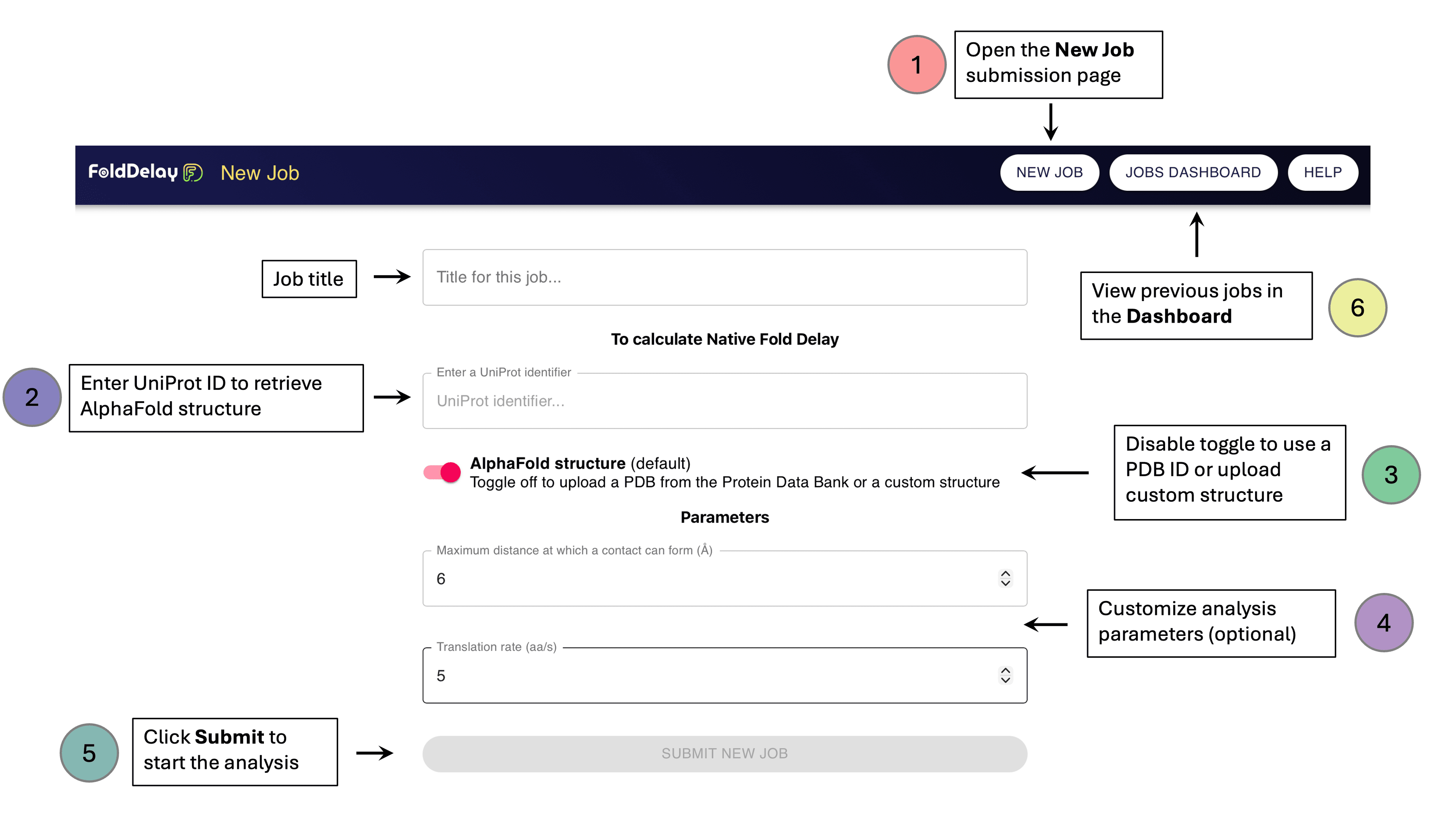
From any page on the server, select New Job (1) in the navigation bar to begin a new analysis.
By default, FoldDelay uses AlphaFold-predicted structures as input. Enter a UniProt Accession Number (2) to automatically retrieve the corresponding structure. UniProt accessions are 6 or 10 alphanumeric characters, for example P05067 for human APP.
To use experimental or custom structures, disable the AlphaFold structure toggle (3). This enables two alternative input options:
- PDB ID – retrieves a structure from the RCSB Protein Data Bank. PDB IDs are 4 alphanumeric characters, for example 90RW.
- Upload PDB file – allows you to upload a custom structure in PDB format.
Note: Some features, such as PAE-based contact filtering and domain annotation, are only available for AlphaFold-derived structures. These features are not supported for uploaded PDB files.
The analysis can be customized using two parameters (4):
- Maximum contact distance
Defines the maximum allowed distance between non-hydrogen atoms of two residues in the 3D structure for them to be classified as a contact.
Default: 6 Å - Translation rate
Average translation speed used to estimate Native Fold Delay (NFD) values. Translation progresses at about 20 aa/s in prokaryotes and around 5 aa/s in eukaryotes.
Default: 5 aa/s
Click Submit (5) to start the analysis. All submitted jobs can be monitored in the Jobs Dashboard (6), which is always accessible from the navigation bar.
Job Processing
For each submitted structure, the FoldDelay web server performs the following steps:
1: Automatically downloads the structure for the provided UniProt or PDB IDs.
2: Identifies all residue-residue contacts within the specified distance cutoff, retaining only N-terminal to C-terminal residue pairs. This reflects the sequential emergence of residues during translation.
3: For each contact, estimates the minimal time required for its formation by:
- Computing the sequence separation between residues.
- Converting this separation into time using a global translation rate.
When AlphaFold structure mode is enabled, additional processing steps are applied:
4: Contacts are filtered using PAE values to remove residue pairs whose relative positions are predicted with low confidence, reducing false-positive interactions.
5: Protein domain boundaries are automatically retrieved from the Encyclopedia of Domains, allowing contacts to be classified as:
- Intra-domain: both residues belong to the same domain
- Inter-domain: residues belong to different domains
Results Page
From the dashboard, users can access the results pages of completed jobs via the View link. Each results page is organized into two main sections:
1. Structure Viewer
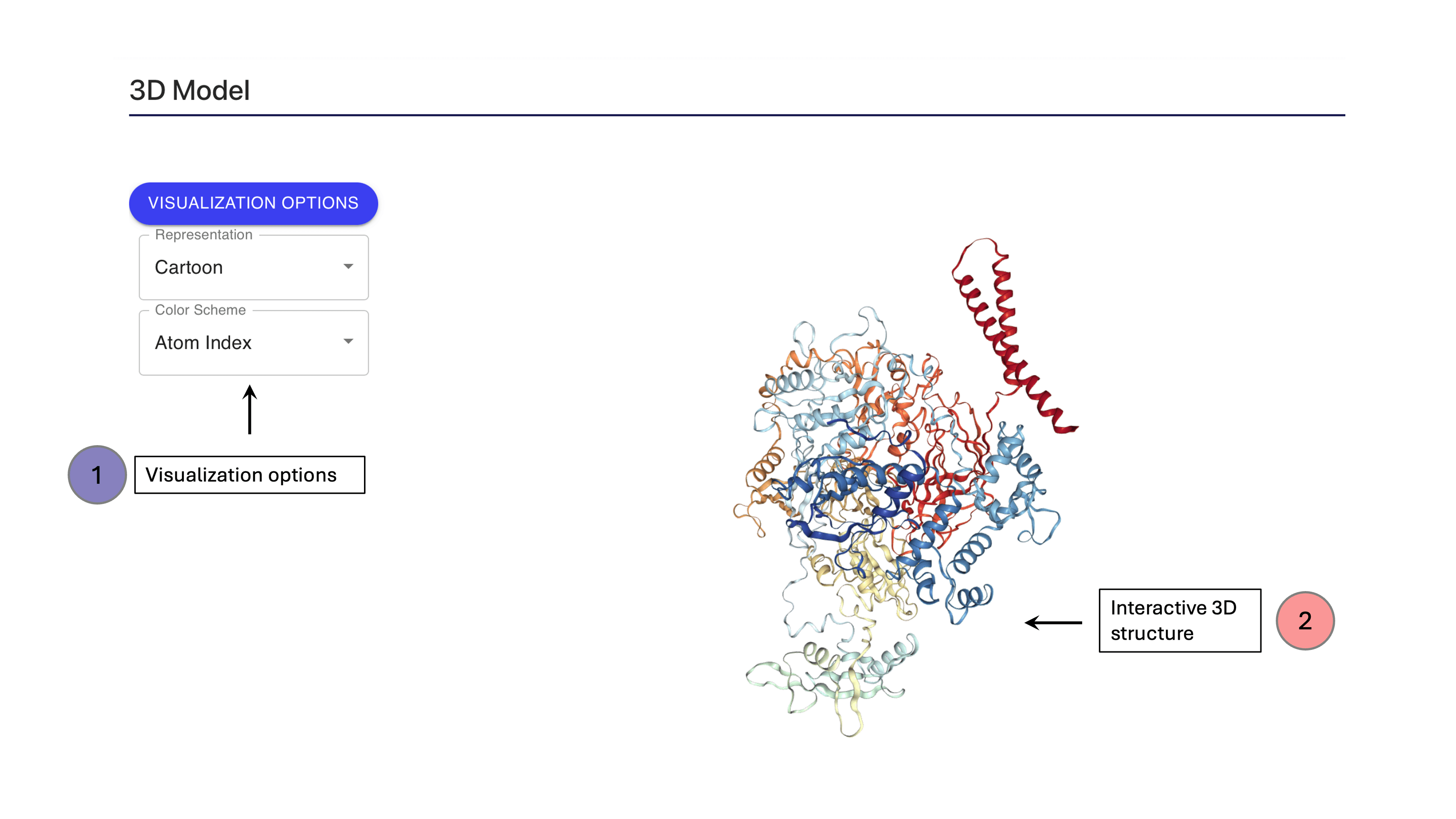
The Structure Viewer displays an interactive 3D model of the input structure. Available features include:
- Switching between representations (cartoon, ribbon, ball-and-stick, surface, etc.) or color by chain, atom type, residue, or hydrophobicity (1)
- Interactive rotation, zooming, and inspection of the structural context (2)
2. Contact Mapping
The Contact Mapping section visualizes native residue-residue contacts during translation. All plots and tables in this section are interactive and linked. Selecting a residue or contact in one panel automatically highlights the corresponding elements across all other panels. Plots and tables can be downloaded using the small ⬇️ icon in each component.
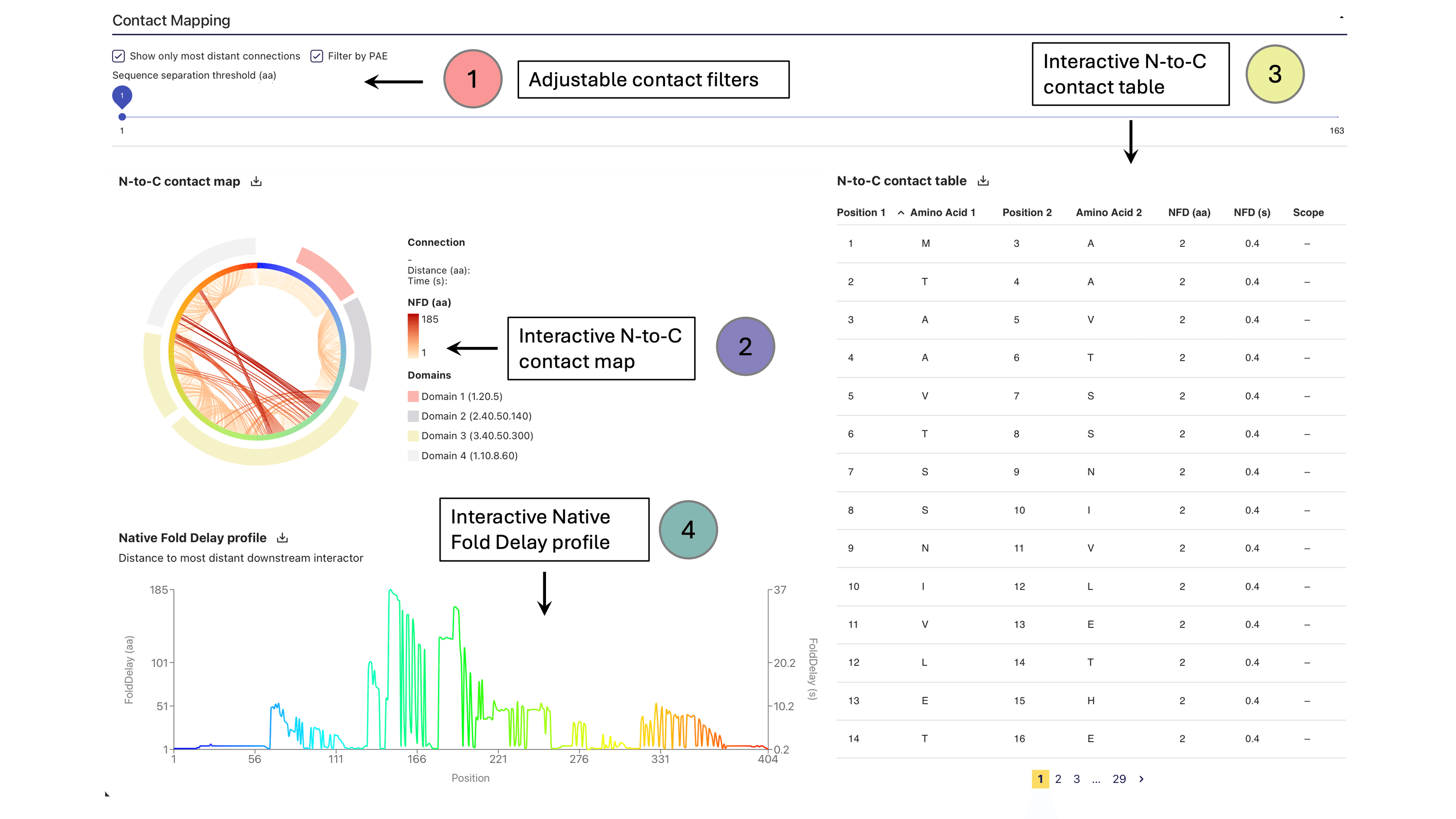
At the top of the page, global filters control which contacts are displayed (1). Available options include:
- Displaying only the most distant contacts (enabled by default)
- Filtering contacts by Predicted Aligned Error (PAE) (enabled by default)
- Adjusting the sequence separation threshold (in amino acids) with the slider (default value: 1)
Changing these filters instantly updates all the plots and tables below.
1. N-to-C contact map
The N-to-C contact map (2) is a circular diagram showing interactions between residues along the protein sequence, from N-terminus (blue) to C-terminus (red). Each line represents a native contact and is colored according to the sequence separation between the two interacting residues.
Hovering over or clicking a contact reveals the identities of the interacting residues and highlights them in the other panels. For AlphaFold structures, structural domains are displayed as outer arcs, each shown in a distinct color, allowing users to easily distinguish whether unsatisfied residues are involved in intra- or inter-domain interactions.
2. N-to-C contact table
The N-to-C contact table (3) lists every N-terminus to C-terminus contact detected in the structure. For each contact, the following information is provided:
- Position 1: Index of the N-terminal residue involved in the contact
- Amino Acid 1: Amino acid identity of the N-terminal residue
- Position 1: Index of the C-terminal residue involved in the contact
- Amino Acid 2: Amino acid identity of the C-terminal residue
- NFD (aa): Sequence separation between the two residues (in amino acids)
- NFD (s): Estimated time for a residue-residue contact to become possible, computed from the sequence separation and the specified translation rate (in seconds)
- Scope: Domain interaction type:
intra— both residues belong to the same domaininter— residues belong to different domains
The table supports sorting and text-based search. Selecting a row highlights the corresponding contact in both the contact map and the NFD profile.
3. Native Fold Delay (NFD) profile
The Native Fold Delay (NFD) profile (4) displays, for each residue, the sequence separation (in amino acids) and the estimated folding delay (in seconds) to its most distant downstream interaction partner.
All results can be bundled and downloaded together for convenience via the “Download job results” option at the bottom of the page.